
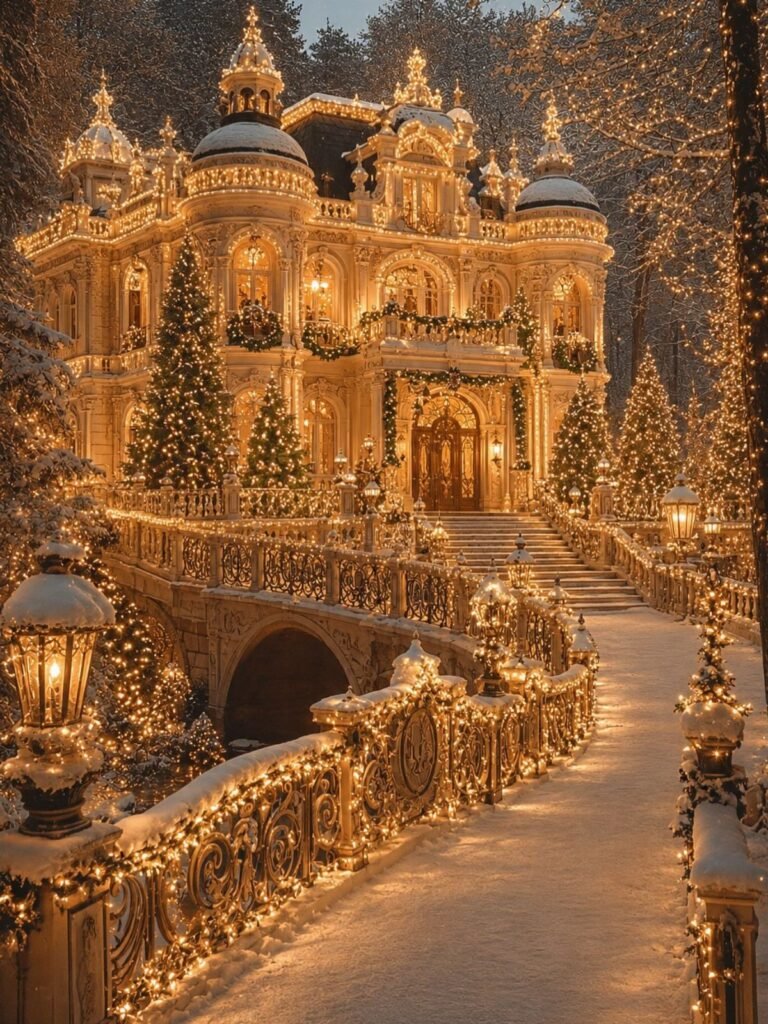
These December wallpapers for iPhone range from snowy forests to hand-drawn doodles, with the deciding factor being where you need clarity most: lock screens can handle visual busyness, but home screens need breathing room for app labels.
The list includes a starlit Christmas tree framed by snowy branches and a cozy fire option that pairs with the Netflix Yule Log for the full crackle-and-glow effect.
1. Winter Wonderland Wallpapers

A winter wonderland wallpaper keeps working after December 25, which matters if you do not want to swap backgrounds twice in one month.
Free winter scene downloads from photographers across the US, Italy, Argentina, and Jordan give you the same snow-covered bench and lantern glow without paying for a stock photo.
I would save a handful of favorites and set your phone to rotate them; one static image goes stale fast.
This style suits anyone who wants the seasonal feeling without red-and-green overtness, though the dark tones can make app icons harder to read on a cluttered home screen.
2. Aesthetic Christmas Wallpapers

Screenshot or right-click download; most creators do not gate them. I would pick this type for a lock screen specifically, since the visual busyness competes with app labels on a home screen.
Vintage-leaning versions with softer color saturation exist if the gold twinkle feels too bright for daily use.
3. Christmas Tree Wallpapers
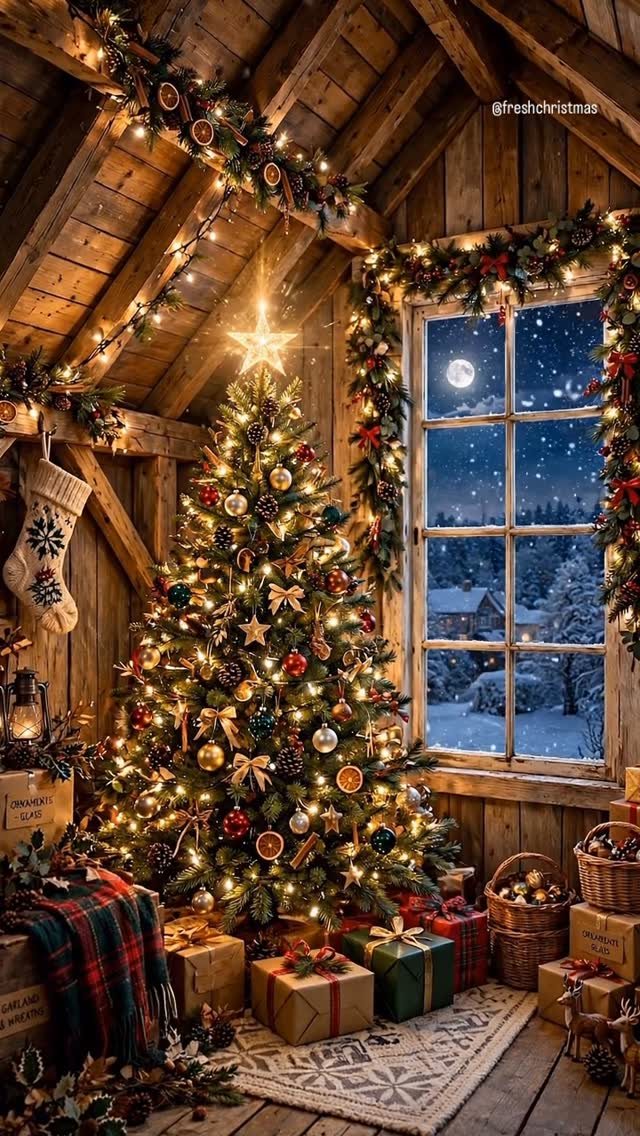
A Christmas tree wallpaper is the default for a reason, and a rustic attic version with exposed wood beams and moonlit window keeps the tradition from feeling generic.
Red, gold, and white ornaments read clearest at phone scale; multicolor schemes muddy into blur on a small screen.
I have used tree wallpapers as my December constant even when my actual tree was a 2-foot tabletop version or nothing at all.
This reads unmistakably as Christmas, not winter generally, so the timing of when you put it up and take it down matters more.
4. Cozy Fire Wallpapers
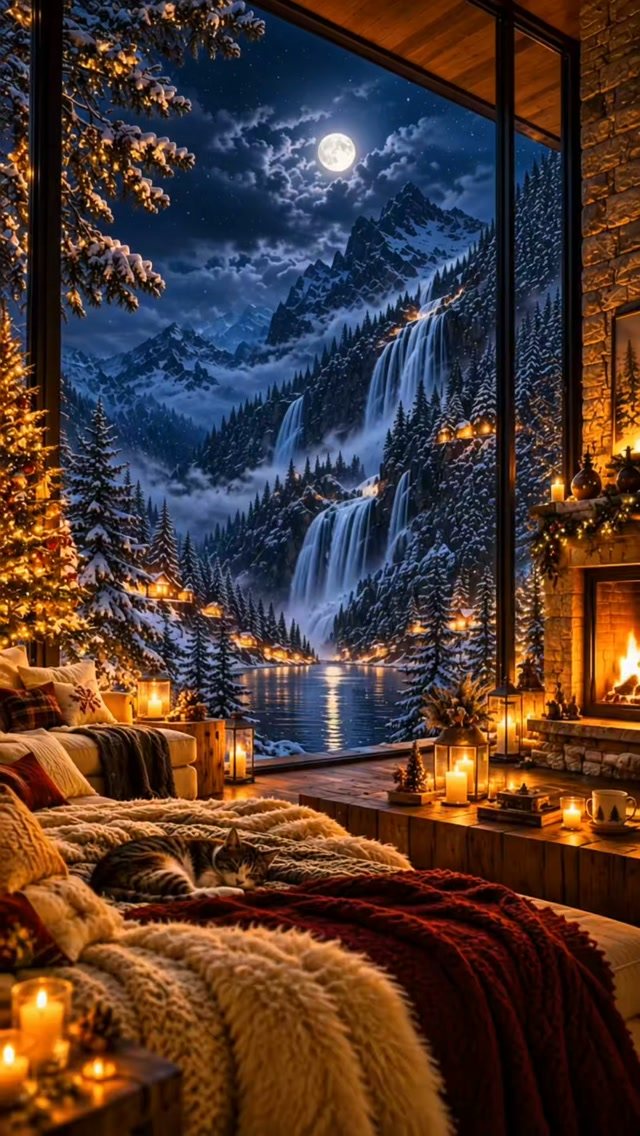
Pair the wallpaper with the Netflix Yule Log on a nearby screen and a Christmas candle for the crackle-and-glow effect.
I would choose a wallpaper with the fire off-center, like this one with the window view, so your clock widget does not land directly on the brightest point.
This option wins for work-from-home days when you want the hygge signal without the heating bill. Warm-orange-dominant backgrounds can skew your phone’s color temperature at night.
5. Holiday Doodles Wallpapers

Holiday doodles hit a different register than photoreal wallpapers: a teddy bear, gingerbread men, and "Merry Christmas" snow globe drawn rather than photographed read as playful rather than atmospheric.
This style works best if your phone case or lock screen clock is already minimalist; too many competing elements and the doodles look like clutter.
I would use this for a home screen where app icons are the main event, since the even beige background and scattered small illustrations do not fight for attention the way a centered tree or fireplace does.
Screenshot-friendly and genuinely free.
6. Festive City Street Wallpapers

Cobblestone streets with bow-tied lampposts and cafe seating under string lights carry the holiday feeling through architecture rather than decoration.
This is the wallpaper for travelers who are staying home, or for mid-December when you need the festive push but your own block looks unchanged.
The warm window glow against cold blue-dark sky gives your phone actual depth; I have found this type photographs better in screenshot shares than busier options.
Check that the brightest point is not dead center, or your time display will halo awkwardly. Best for lock screen; the detail density frustrates quick app location on a home screen.
How to Download Wallpapers
I save the image to my camera roll first, then head to Settings, tap Wallpaper, choose Add New Wallpaper, and pull it from Photos.
In the preview, I drag or pinch the image until the clock and widgets sit somewhere that does not hide the detail I want to see. Tap Add, then choose whether to use it for both screens or just one.
If your menus look different from what you expect, Apple’s own iPhone wallpaper instructions will show you the current layout; this process changes slightly with iOS updates.
Some browsers hand you a sharing menu with a save option, which works the same as the press-and-hold.
Variety of Styles Available
The range runs from photoreal winter landscapes and city streets at night to illustrated gingerbread and snow globes.
Using Wallpapers on IPhone
Your iPhone wallpaper settings live at Settings → Wallpaper → Add New Wallpaper → Photos.
Pressing and holding an open image in Safari usually brings up a Save to Photos choice; if a sharing icon shows up instead, that menu has its own save button.
Once you select the image, pinch and drag to adjust the crop before committing; the part you love needs breathing room around the clock and widgets.
After tapping Add, decide whether to pair it across both screens or customize the home screen separately. The graphics in free collections carry rights that stay with their original owners, Canva or Depositphotos among them.
Personal Use Only
Rights to the underlying graphics remain with their owners even when the download costs you nothing.
Frequently Asked Questions
Where can I find free iPhone wallpapers?
Free December wallpapers come from photographers posting seasonal collections across the US, Italy, Argentina, and Jordan. Opening the full image and saving it directly keeps more detail than a screenshot, which compresses the file.
Most creators do not gate their downloads, though you may need to tap through to the full-resolution version first.
What are some cute Christmas wallpapers?
Holiday doodles with teddy bears, gingerbread men, and snow globes read playful because they are drawn, not photographed. Red, gold, and white ornaments read clearest at phone scale; multicolor schemes muddy into blur on a small screen.
How do I add seasonal wallpaper to my iPhone?
Save the image to Photos, then go to Settings, Wallpaper, Add New Wallpaper, and select from Photos. In the preview, drag or pinch so your clock and widgets avoid the brightest spot, or the text gets a halo behind it.
A wallpaper pair matches both screens, or you can quiet the home screen background so app icons stand out.